Logging
FiniAC provides multiple logging systems to help you monitor server activity, debug issues, and investigate exploits. Server detection and event logs are sent to the web panel where they can be viewed and searched in real-time.
The event and trigger logs are also stored in local files within the FiniAC resource folder.
FiniAC Detection Logs
All FiniAC detection logs (connections, disconnections, anti-cheat detections) are available on the Logs page in the web panel. Logs can also be sent to Discord or third-party services via webhooks.
Server Event Logs
Server event logs record all server-side events processed by FiniAC, such as entity creation and weapon damage events. Server events are viewable on the Event Logs page in the web panel and also stored in a local file on the server.
File: server-events.log in the FiniAC resource folder
Config Option: Server-event logs → File
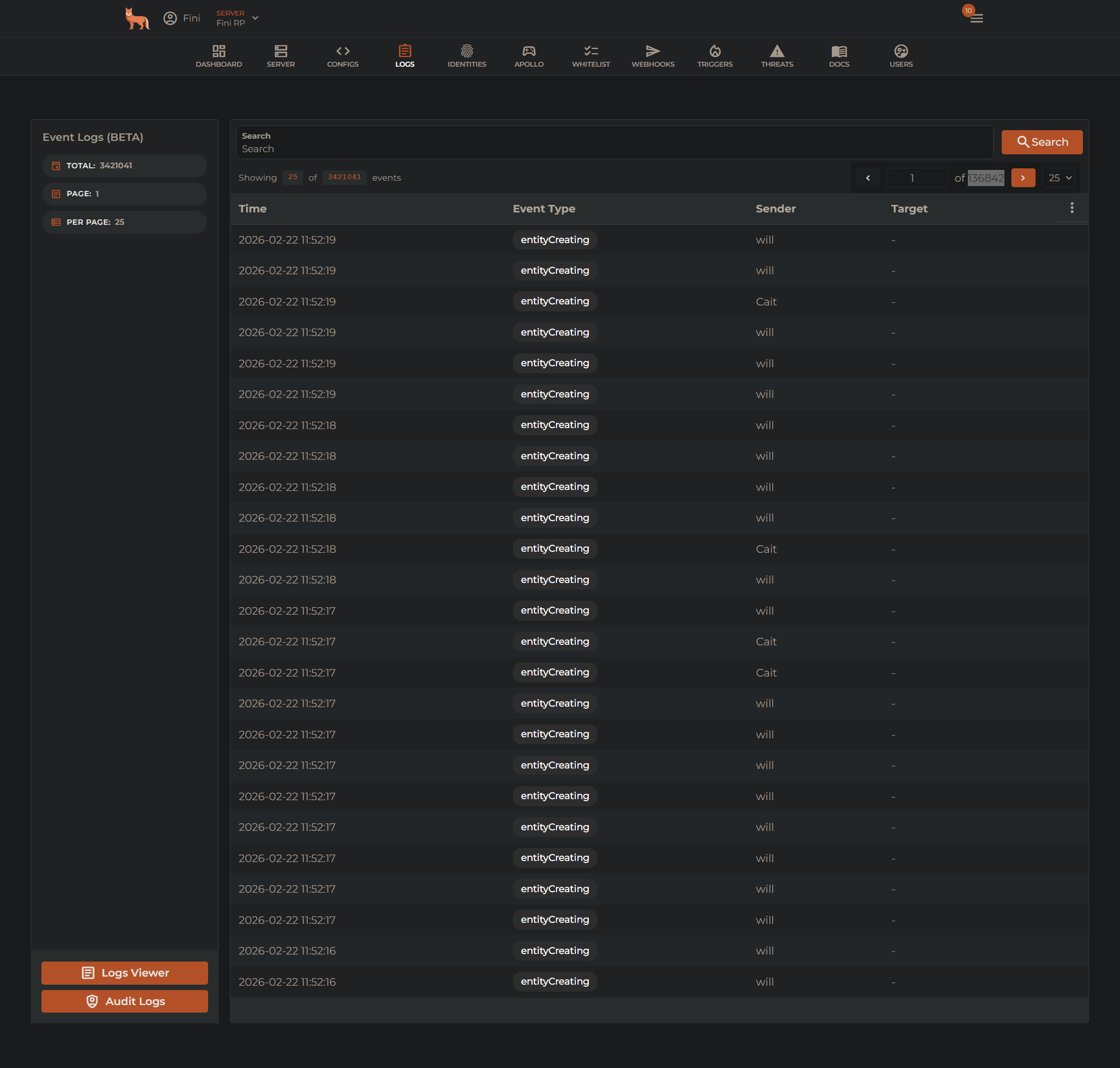
Use Cases:
- Investigating cheater actions - See how cheaters spawned entities or damaged other players.
- Debugging false positives - Investigate why
BadEntityCreatingorEntityRatelimitdetections were triggered and how to fix them.
Server Trigger Logs
File: server-triggers.log in the FiniAC resource folder
Config Option: EP: Log all events → Enabled
Server trigger logs record all triggers sent to the server from event-protected resources. This log captures every event that passes through Event Protection, allowing you to trace the full event flow.
Use Cases:
- Tracing dupe exploits - Follow the event chain that allows players to dupe items
- Investigating exploitable resources - Identify events that exploit vulnerabilities in open source resources
- Illegal item tracking - If a cheater managed to spawn in items/money, use trigger logs to track if any other players were given them
Trigger Statistics
File: events.stats.csv in the FiniAC resource folder
Config Option: EP: Log event stats → Enabled
Trigger statistics create a CSV file that records the number of events sent by each Event Protected resource every minute.
Format:
- Header row:
timestamp,resource1,resource2,resource3,... - Data rows:
timestamp,count1,count2,count3,... - New row appended every minute
- Only includes Event Protected resources
Use Cases:
- Server optimization - Identify resources generating excessive events
- Performance debugging - Pinpoint which resources are causing lag
- Event monitoring - Track event patterns over time
- Resource auditing - See which resources are most active
Example CSV:
timestamp,esx_inventory,qb-shops,ox_inventory
2024-11-20 14:30:00,145,23,89
2024-11-20 14:31:00,152,19,94
2024-11-20 14:32:00,138,31,87
Analysis Tools
Open the CSV in Excel, Google Sheets, or use Python/R for advanced analysis to identify resource performance patterns.
Log Rotation
All log files are automatically rotated when they reach 250 MB in size.
How it works:
- When a log file reaches 250 MB, it is renamed to
filename.rotated - A new empty log file is created with the original name
- The next rotation replaces the old
.rotatedfile
Example:
server-events.log (current, 150 MB)
server-events.log.rotated (previous, 250 MB)
File Replacement
Only one rotated file is kept. When the current log reaches 250 MB again, the old .rotated file is deleted and replaced with the newly rotated file.
Best Practices
- Keep logging active - Logging has minimal performance impact and it's useful to have all logs available for investigation when needed.
- Monitor log sizes and dates - Make sure the logs are being written correctly and not blocked by file permissions or similar.
- Use CSV stats for optimization - Review
events.stats.csvto identify resources that could be cauisng performance issues.
Troubleshooting
Logs Not Being Created
Issue: Log files are not appearing in the FiniAC resource folder.
Solutions:
- Verify the config option is set to
FileorEnabled - Check FiveM server has write permissions to the resource folder
- If there are existing log files delete them and try again. If there are no existing log files try creating them manually
Log Files Too Large
Issue: Log files consuming too much disk space.
Solutions:
- Logs automatically rotate at 250 MB
- Manually delete
.rotatedfiles if needed - Disable logs you don't actively use
CSV Not Recording All Resources
Issue: events.stats.csv missing some resources.
Solutions:
- Only Event Protected resources are logged
- Verify Event Protection is installed on the resource
- Check that the resource is actively sending events