In-Game Admin Menu
FiniAC ships with an in-game admin menu. Your staff can see everyone on the server with their TrustScore and recent detections, teleport to a player, spectate them, watch a live stream of their screen, inspect who spawned an entity, and kick or ban without ever opening the web panel.
The menu is built into FiniAC. There is nothing extra to install, but access has to be granted deliberately via ACE permissions.
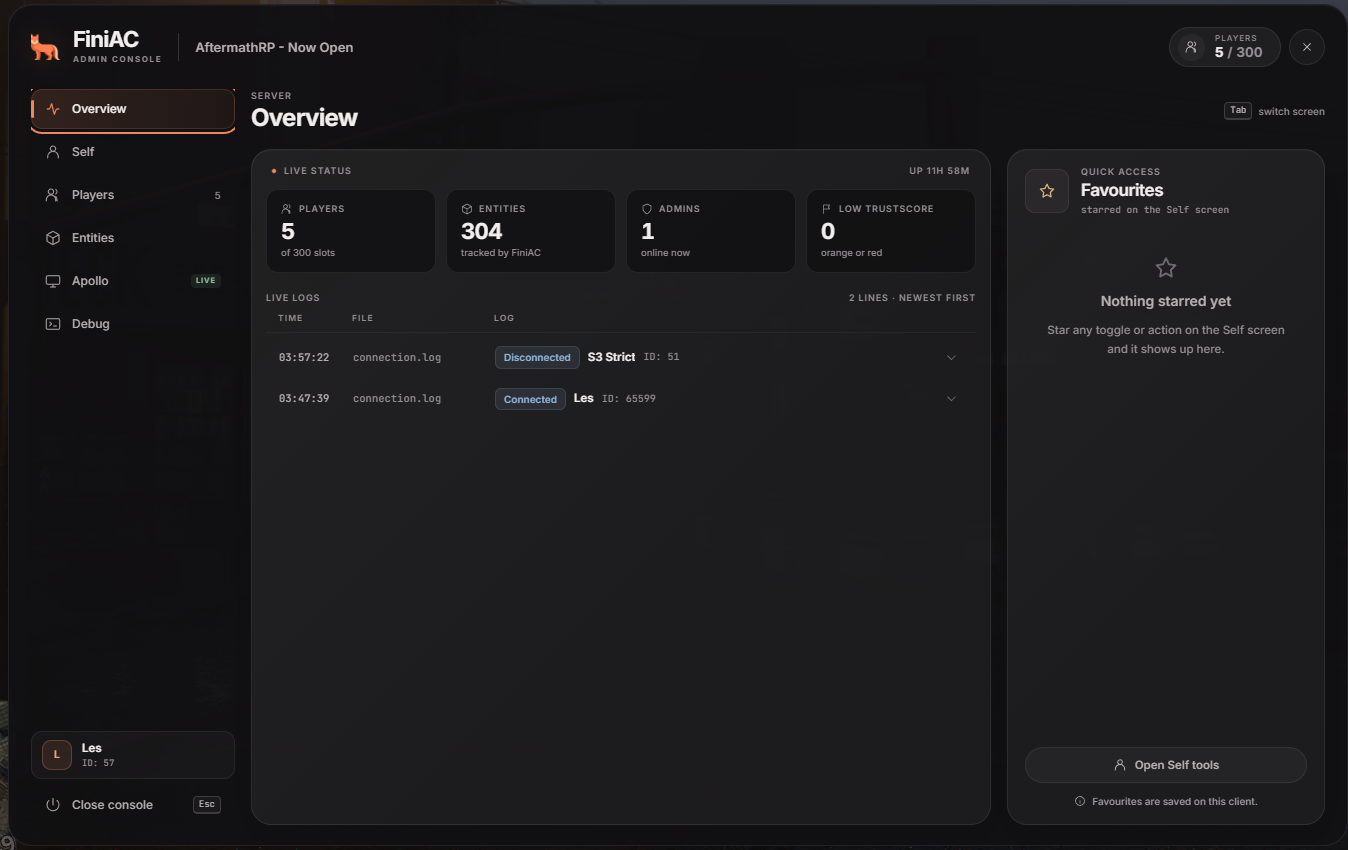
Server status, with detections and connection logs as they arrive.
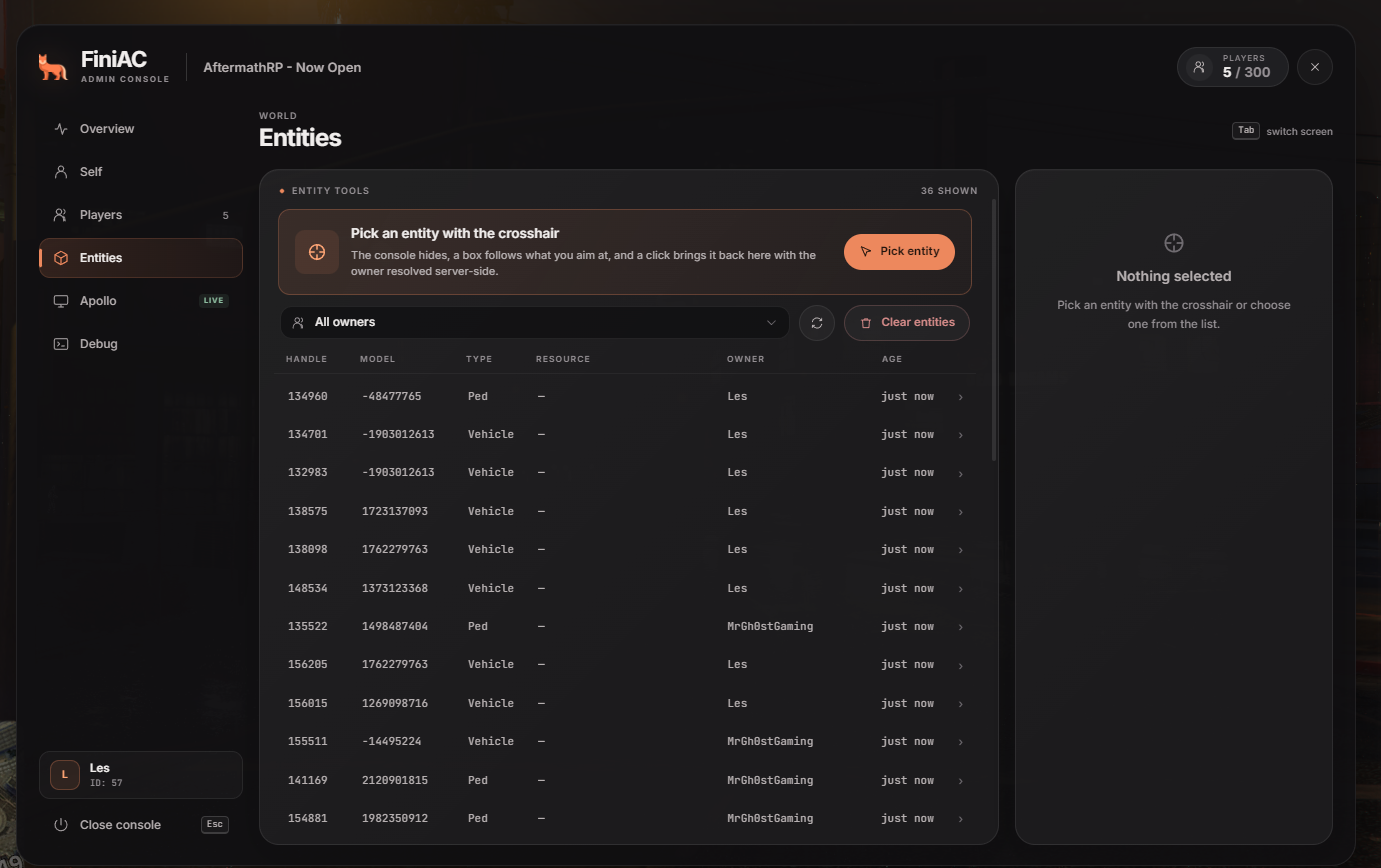
What your players have spawned, and who spawned it.
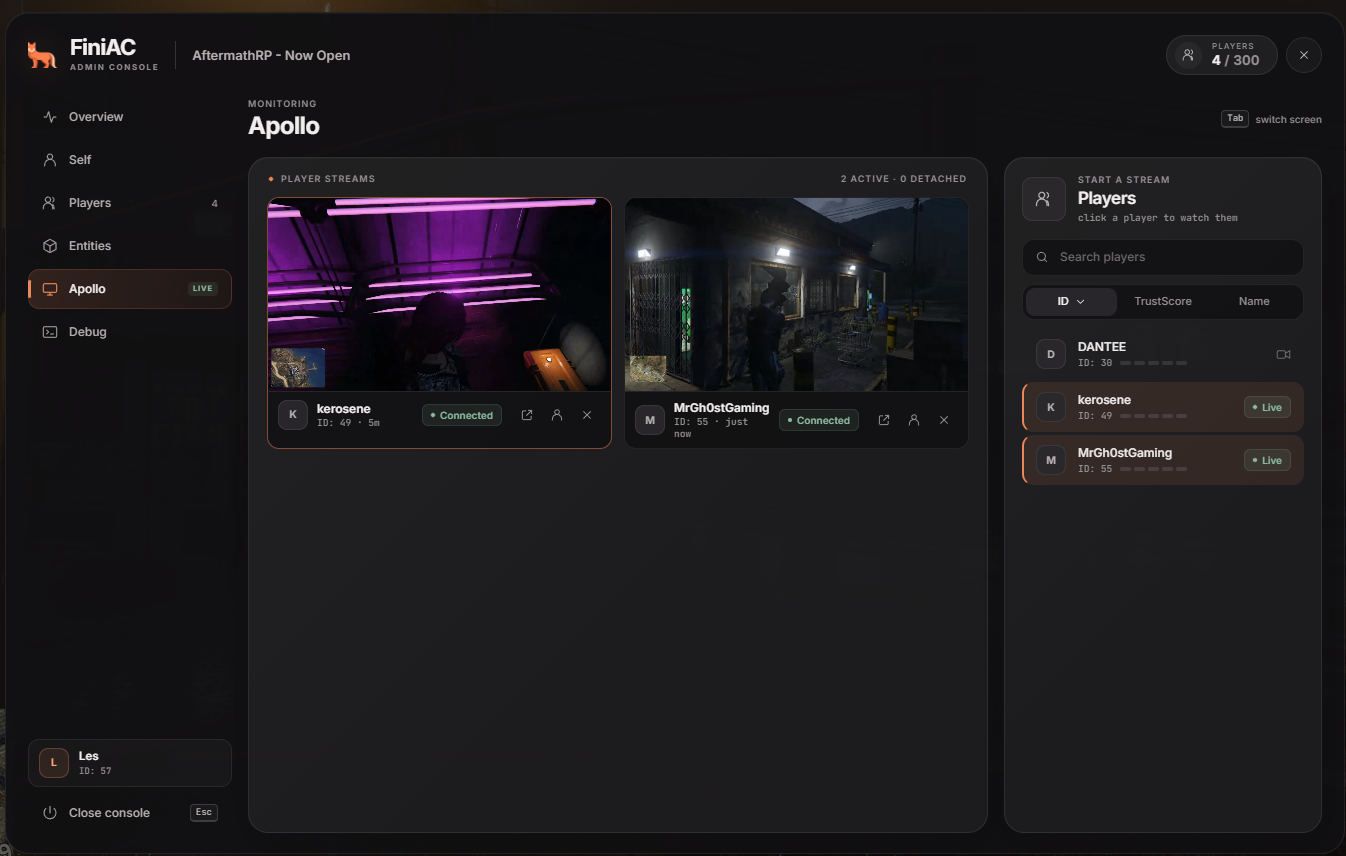
Live streams of your players' screens.
Requirements
Two things have to be true before a staff member can open the menu:
- They are on the admin list, through identifiers, ACE permissions or txAdmin.
- They hold the
finiadmin.menuACE permission, described below.
If the player is not an admin or missing the finiadmin.menu permission the menu simply does not open, and the keybinds do nothing.
Granting access
Access is controlled by the ACE permission finiadmin.menu. Grant it to a group, or straight to a single person's identifier.
# Everyone in the admin group can open the FiniAC menu
add_ace group.admin finiadmin.menu allow

# Or grant it to one person directly
add_ace identifier.discord:123456789012345678 finiadmin.menu allow
Why not finiac.menu
FiveM treats finiac.menu as part of finiac, the permission that whitelists an admin. The menu lives under its own finiadmin root so that whitelisting alone never hands out kick, ban and teleport powers: it has to be granted on purpose.
To take the menu away from someone who inherits it from a group, deny it on them directly. A deny always beats an allow, wherever the allow came from:
# Block an individual user from opening the menu
add_ace identifier.discord:987654321098765432 finiadmin.menu deny
ACE permission changes take effect without a reconnect. Granting it works as soon as the staff member presses the open key again. Taking it away is enforced by the server straight away, and every action they attempt is refused.
Opening the menu
Press O to open and close the menu, or run /finimenu in the chat. Esc closes it, and so does the close button in the top right.
This can be rebinded in the FiveM settings.
Keybinds
Four keys are registered, all of them rebindable.
| Action | Default key | Name in the key bindings list |
|---|---|---|
| Open and close the menu | O | FiniAC admin console |
| Teleport forward, hold to keep going | Shift + 5 | FiniAC admin - Shift + key: teleport 10 m forward (hold) |
| Delete the entity you are aiming at | Shift + Delete twice | FiniAC admin - Shift + key twice: delete entity in crosshair |
| Destroy the entity you are aiming at | Shift + End twice | FiniAC admin - Shift + key twice: destroy entity in crosshair |
Rebinding
The keys are registered with FiveM itself, so they are rebound the same way as any other resource's keys:
- Open the FiveM settings menu (Esc → Settings)
- Go to Key Bindings → FiveM
- Find the four FiniAC admin entries and set whatever keys you prefer
Shift is fixed
Shift is always the modifier on the three world keys and is not part of the binding. Rebinding changes the second key only, so a staff member who rebinds the delete key to K uses Shift + K twice.
World keybinds
These three work while the menu is closed.
Teleport forward moves you 10 metres in the direction the camera is facing and places you neatly on the ground. Tap it once to hop once, or hold it to travel continuously at roughly 150 metres per second.
Delete and destroy both act on whatever your crosshair is pointing at, and both need two taps. The first tap tells you what you are aiming at, the second carries the action out. Delete removes the entity outright, destroy blows up vehicles, kills peds and removes objects. Neither key will ever action on another player.
Audit log
Every admin action is written to admin-audit.log in your FiniAC resource folder, one line per action. Each line records who did it, which player or entity it was done to, the details they entered, and whether it succeeded.
Server actions such as kicks, bans, freezes, teleports, bucket changes, entity deletions and stream requests are logged, and so are the client-side tools a staff member uses on themselves, like noclip, vehicle spawning and teleports. The file rotates automatically once it gets large, the same way FiniAC's other server logs do.
Troubleshooting
Nothing happens when pressing the open key
Solutions:
- Confirm the player is on the admin list and is recognised as an admin
- Confirm Admin bypass is enabled in your FiniAC config, then have them reconnect
- Confirm the key has not been rebound in Key Bindings → FiveM
"Your account lacks the finiadmin.menu permission"
Solutions:
- Add
add_ace group.admin finiadmin.menu allowto yourserver.cfg, matching the group the staff member is in - If you granted it at runtime with the
add_acecommand, have them press the open key again; the permission is re-checked each time - Check no
denyline elsewhere in your config is overriding the grant
Ban, Stream or Screenshot buttons are missing
Solutions:
- Make sure the staff member is connected with the Discord account that is a user on your FiniAC panel
- Check that user's permissions on the panel include
BANS.ADD,APOLLO.STREAMorAPOLLO.SCREENSHOT - Have them close and reopen the menu to pick up permission changes