Logs
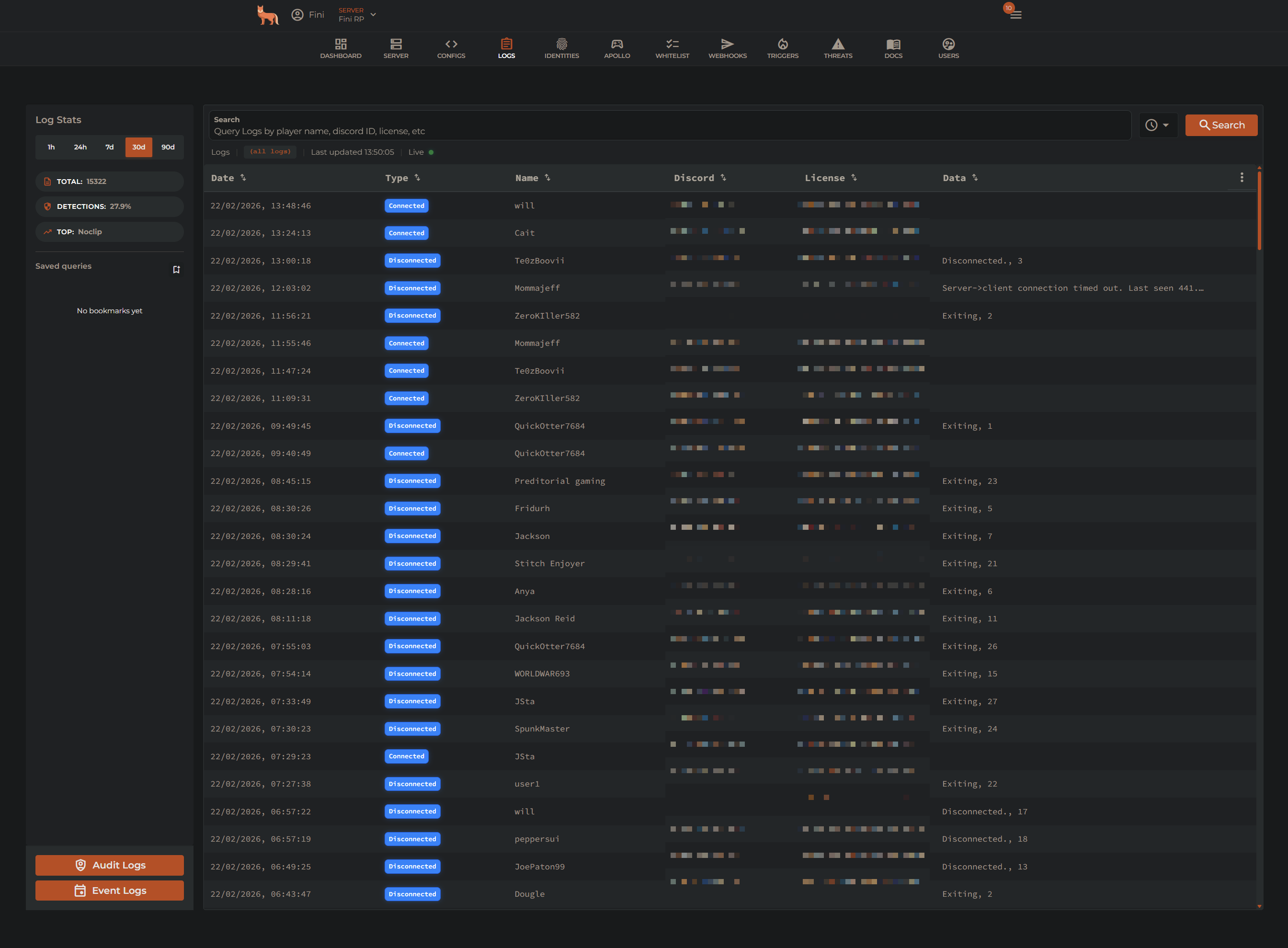
The Logs page is the central place to view all FiniAC activity on your server. It shows connections, disconnections, anti-cheat detections, and more — all in one unified view with live streaming and search.
Viewing Logs
When you open the Logs page, logs are streamed live in real time. New logs appear at the top of the table automatically.
- Live mode is indicated by a green "Live" dot next to the last updated time
- Scrolling down pauses live updates so you can browse older logs without the view jumping
- Scroll back to the top to resume live updates — a "Paused" badge appears while paused
- As you scroll to the bottom, older logs are loaded automatically
Log Details
Click on any log row to expand it and view the full details:
- Type — the log type with a color-coded badge
- Filename — the source file that generated the log
- Identifiers — all player identifiers (license, Discord, FiveM, etc.) with copy buttons
- Data — the log message and any associated data
- Screenshot/Video — attached media if available (e.g. anti-cheat screenshots)
From the detail view you can:
- Click View Profile to open the player's full profile
- Click any license identifier in the table to open that player's profile
- Copy individual identifiers or data values, or copy all at once
- Hover over Discord IDs or FiveM IDs to see additional information
Searching
Use the search bar at the top to search through your logs. Type your query and press Enter or click the Search button.
- Search works for any identifier (license, Discord ID, FiveM ID), player name, log type, or data content
- Searches require a full word or token match — partial words will not return results
- The minimum search length is 5 characters
- Use the timespan filter next to the search bar to narrow results to a specific date range
Clear Search
Click the X button next to the search bar to clear your search and return to live mode.
Saved Queries
The left sidebar shows your saved queries (bookmarks). These let you save frequently used searches for quick access.
To save a query:
- Perform a search with your desired query and timespan
- Click the save icon next to "Saved queries" in the sidebar
- Enter a name and optional description
- Click save
To load a saved query:
- Click on any saved query in the sidebar to instantly run that search with its saved filters and timespan
To delete a saved query:
- Click the X button on the saved query
Log Stats
The top of the sidebar displays statistics for your server's logs:
- Total — total number of logs in the selected time range
- Detections — percentage of logs that are detections
- Top — the most common log type
Switch between time ranges using the tabs: 1h, 24h, 7d, 30d, 90d.
Event Logs
Click Event Logs in the bottom-left corner to view server event logs. These show server-side events processed by FiniAC such as entity creation and weapon damage.
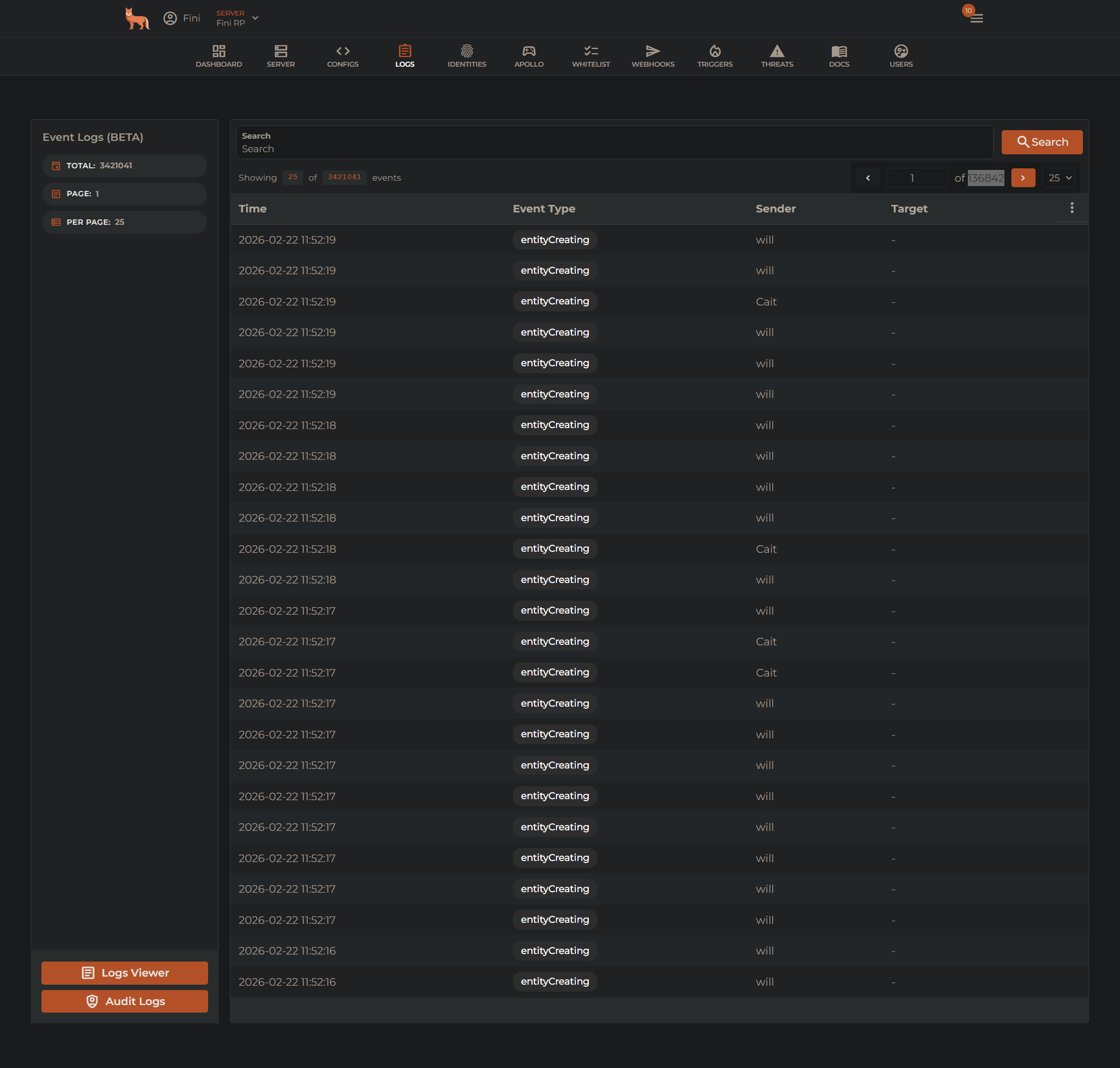
Each event shows the time, event type, sender, and target. Click on an event to view full details including all player identifiers, positions, and the event payload.
TIP
Event logs are also written to the server-events.log file in your FiniAC resource folder. See Logging for more information on local log files.
Audit Logs
Click Audit Logs in the bottom-left corner to view admin audit logs. These record all administrative actions performed through the FiniAC panel, such as configuration changes, bans, and unbans.
Permission Required
Audit Logs require the AUDIT.VIEW permission.